How to connect an app in Muse
Six screens, about a minute. This example connects Gmail; every app in Muse's Connectors list works the same way.
- 1
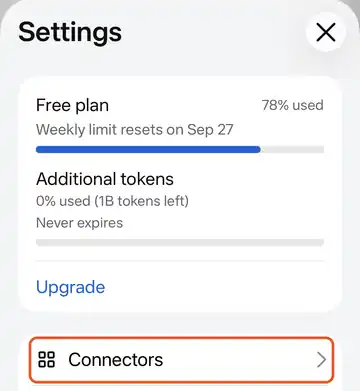
Open Settings and tap Connectors
In the Muse app, open Settings. Your plan and how much of your weekly limit you have used are at the top. Tap Connectors.
- 2
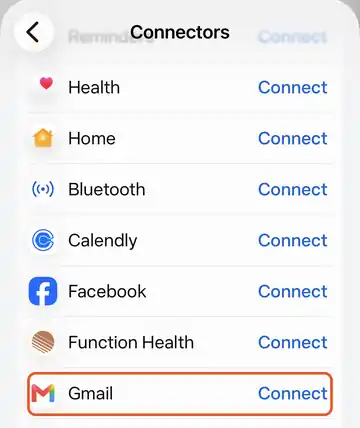
Find the app and tap Connect
Every app Meta has approved is listed here, such as Gmail, Google Calendar, Apple Health and Function Health. Find the one you want and tap Connect next to it.
- 3
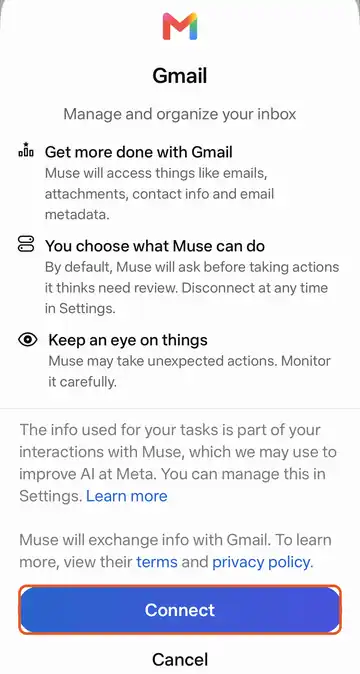
Read what Muse will see, then tap Connect
Muse shows what it will be able to access. For Gmail that is your emails, attachments, contact info and email details. It also says Muse asks before taking actions it thinks need review, and that you can disconnect at any time in Settings.
- 4
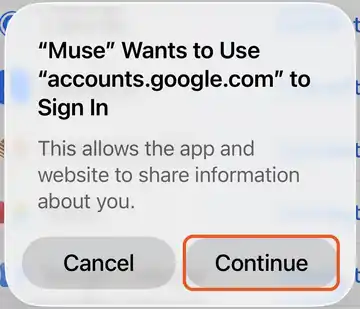
Let your phone open the sign-in page
Your phone asks whether Muse can open the sign-in page. Tap Continue.
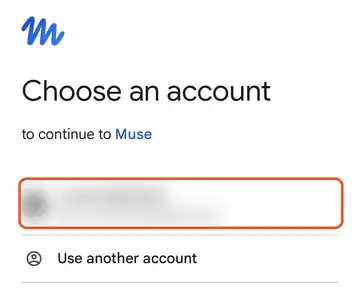
- 5
Pick your account
Choose the account you want Muse to use, for example the email address your bills and receipts go to. We blurred our own account in this picture.
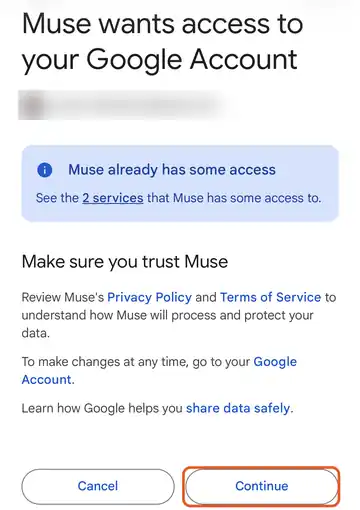
- 6
Check the access and tap Continue
Google confirms what you are allowing. You can remove Muse's access later from your Google Account, or disconnect the app in Muse settings.
That's it. Back in Muse, the app now shows as connected. Try your first request: find subscriptions you forgot about, using just your email.
Apps that are not in the list
For apps that are not in Muse's Connectors list, you paste a request into Muse and it uses the app directly, asking before it shares anything with the app's site. Meta's help center describes this: Muse guides you through it, gets the app's API details, and keeps any key in its Secure Credentials Store. Each app's page on this site gives you the exact request to paste. Meta does not review apps used this way, so only use ones you trust. Apps that need you to sign in with an account usually cannot be added this way yet.
Screens from the Muse app on iPhone, September 2026. They may look a little different on your phone or after an update. The orange boxes show where to tap.